> ## Documentation Index
> Fetch the complete documentation index at: https://docs.aiohub.org/llms.txt
> Use this file to discover all available pages before exploring further.
# Imagine
> Use Imagine for text-to-image and image editing.
Generated images are saved **only in the current browser**. They are **not stored on AIOHub servers**. **Clearing browser data removes image history**, so download any results you want to keep.
[Imagine](https://imagine.aiohub.org/) is AIOHub's browser image client for testing GPT image generation and image editing with your own AIOHub API key. Use it when you want to try prompts, compare image models, or edit reference images without writing SDK code.
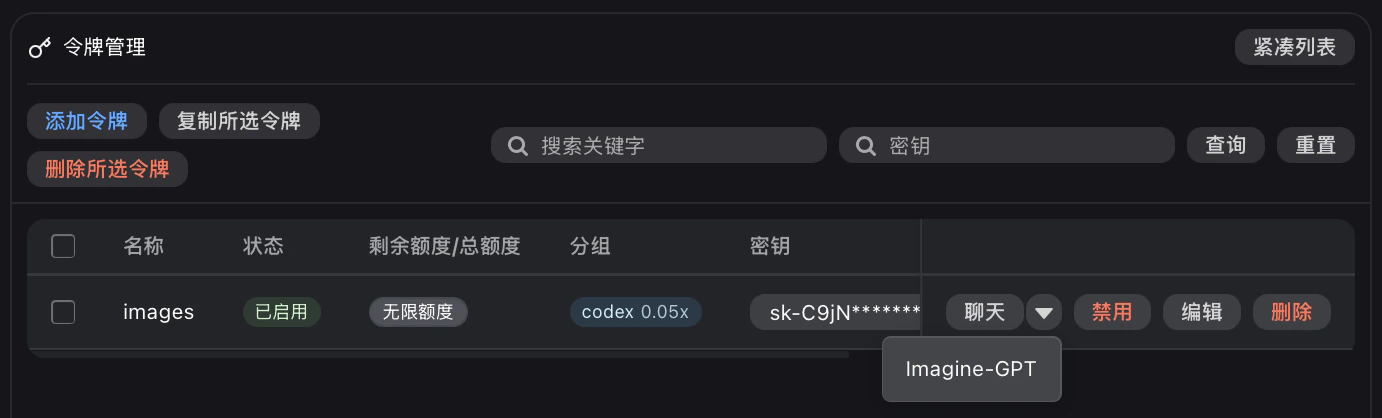
You can also open it from **Token management**. Use the **Imagine** action on an image-enabled API key; AIOHub opens the page with that key prefilled, so you do not need to paste the API key again.
 ## Prerequisites
* An [AIOHub API key](/en/account/create-token)
* A positive account balance
* An API key with at least one `openai` or `codex*` group, such as `codex` or `codex-passthrough`, for `gpt-image-2`
## Recommended values
| Setting | Value | Notes |
| ------------- | ---------------------------------------------------------- | ---------------------------------------------------------------- |
| App URL | `https://imagine.aiohub.org/` | Open Imagine in your browser |
| API URL | `https://api.aiohub.org` | Use the gateway root in this client |
| API Key | `sk-your-api-key` | Use a dedicated API key for this browser client |
| API interface | Images API (`/v1/images`) | Uses OpenAI Images generation and editing routes |
| Codex CLI | Enable for `codex*` groups; disable for the `openai` group | Match the switch to the API key group |
| Model ID | `gpt-image-2` | The API key must include at least one `openai` or `codex*` group |
| Timeout | 360-600 seconds for large or high-quality jobs | Image generation can take longer than chat responses |
**The Codex CLI switch depends on the API key group:**
* API key in a `codex` or `codex-passthrough` group -> enable it
* API key in the `openai` group -> disable it
Unsure which group the key uses? Check the key details on the console **Token** page.
## Prerequisites
* An [AIOHub API key](/en/account/create-token)
* A positive account balance
* An API key with at least one `openai` or `codex*` group, such as `codex` or `codex-passthrough`, for `gpt-image-2`
## Recommended values
| Setting | Value | Notes |
| ------------- | ---------------------------------------------------------- | ---------------------------------------------------------------- |
| App URL | `https://imagine.aiohub.org/` | Open Imagine in your browser |
| API URL | `https://api.aiohub.org` | Use the gateway root in this client |
| API Key | `sk-your-api-key` | Use a dedicated API key for this browser client |
| API interface | Images API (`/v1/images`) | Uses OpenAI Images generation and editing routes |
| Codex CLI | Enable for `codex*` groups; disable for the `openai` group | Match the switch to the API key group |
| Model ID | `gpt-image-2` | The API key must include at least one `openai` or `codex*` group |
| Timeout | 360-600 seconds for large or high-quality jobs | Image generation can take longer than chat responses |
**The Codex CLI switch depends on the API key group:**
* API key in a `codex` or `codex-passthrough` group -> enable it
* API key in the `openai` group -> disable it
Unsure which group the key uses? Check the key details on the console **Token** page.
 ## Setup
Visit [https://imagine.aiohub.org/](https://imagine.aiohub.org/).
In the console token list, choose **Imagine** on the API key you want to use. This route opens the page with the selected key already filled.
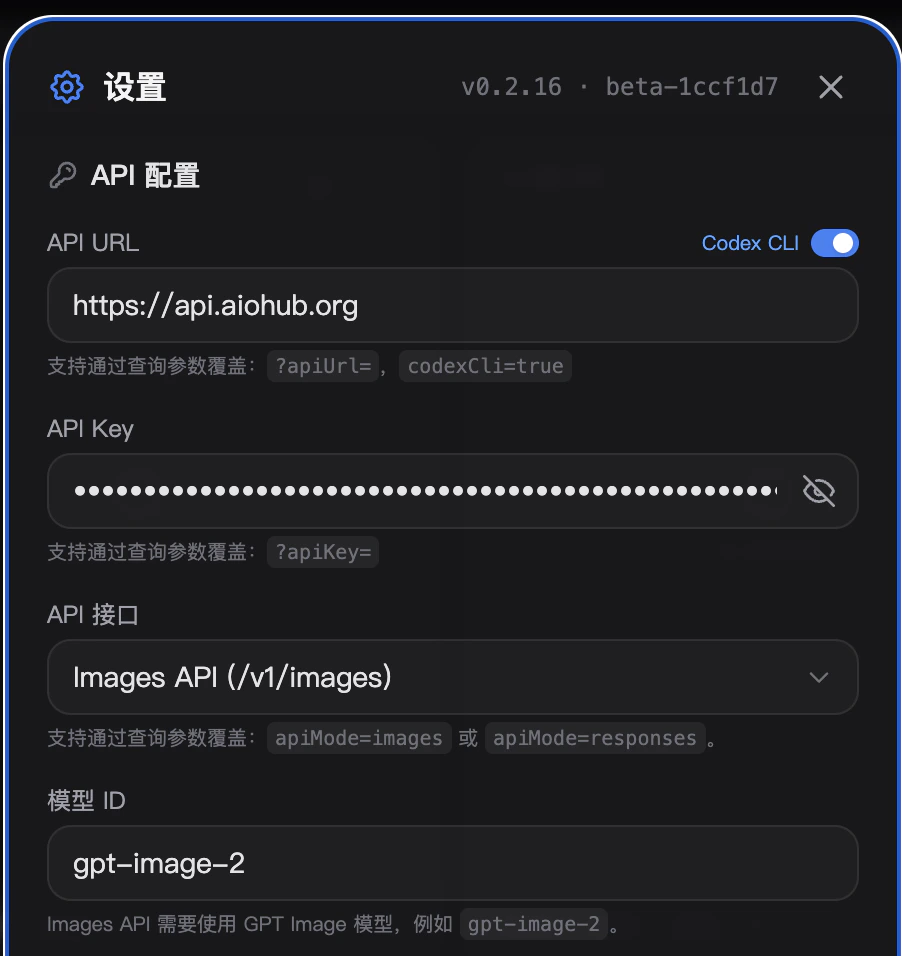
In the top-right settings panel, configure the API URL, API key, API interface, Codex CLI switch, model ID, and timeout.
Set the API URL to `https://api.aiohub.org`. Do not enter `https://api.aiohub.org/v1/images/generations` or `https://api.aiohub.org/v1/images/edits`; Imagine appends the route itself when Images API is selected.
Enable **Codex CLI**. `codex*` groups route requests through Codex channels and need this switch enabled.
Keep **Codex CLI** disabled, which is the default. The `openai` group uses the standard OpenAI Images path.
Set **Model ID** to `gpt-image-2`. If the model is not visible, add an `openai` or `codex*` group to the API key in the console, then retry.
For text-to-image, enter a prompt and choose size, quality, and output format. For image editing, upload one or more reference images, then describe the edit you want.
## Operational notes
* Browser settings and history are local to the browser. Use a dedicated API key, especially on shared devices.
* Usage, cost, and errors are recorded in the AIOHub console logs just like SDK requests.
* Model availability depends on the groups assigned to the API key. For `gpt-image-2`, include at least one `openai` or `codex*` group.
* Large image jobs can take several minutes. Increase the timeout before testing high-quality or high-resolution generations.
* If the browser cannot render a large response, check the console logs before retrying; the API request may already have completed.
## Troubleshooting
Confirm the API key is valid, enabled, and sent as the full `sk-` value. For 403 with `gpt-image-2`, check that the key includes an `openai` or `codex*` group, and confirm the **Codex CLI** switch matches the key group (`codex*` enabled, `openai` disabled).
Request `/v1/models` with the same API key or check the console model list. Select a model that is visible to that key.
The API URL should be `https://api.aiohub.org` in Imagine. Remove any full endpoint path from the API URL field.
Increase the timeout to 360-600 seconds, reduce image size or quality, or try a different visible image model.
Check the group field in the token details page. If it includes `codex` or `codex-passthrough`, enable the switch. If it includes `openai`, disable the switch. If the key includes both group types, either configuration can work.
## Setup
Visit [https://imagine.aiohub.org/](https://imagine.aiohub.org/).
In the console token list, choose **Imagine** on the API key you want to use. This route opens the page with the selected key already filled.
In the top-right settings panel, configure the API URL, API key, API interface, Codex CLI switch, model ID, and timeout.
Set the API URL to `https://api.aiohub.org`. Do not enter `https://api.aiohub.org/v1/images/generations` or `https://api.aiohub.org/v1/images/edits`; Imagine appends the route itself when Images API is selected.
Enable **Codex CLI**. `codex*` groups route requests through Codex channels and need this switch enabled.
Keep **Codex CLI** disabled, which is the default. The `openai` group uses the standard OpenAI Images path.
Set **Model ID** to `gpt-image-2`. If the model is not visible, add an `openai` or `codex*` group to the API key in the console, then retry.
For text-to-image, enter a prompt and choose size, quality, and output format. For image editing, upload one or more reference images, then describe the edit you want.
## Operational notes
* Browser settings and history are local to the browser. Use a dedicated API key, especially on shared devices.
* Usage, cost, and errors are recorded in the AIOHub console logs just like SDK requests.
* Model availability depends on the groups assigned to the API key. For `gpt-image-2`, include at least one `openai` or `codex*` group.
* Large image jobs can take several minutes. Increase the timeout before testing high-quality or high-resolution generations.
* If the browser cannot render a large response, check the console logs before retrying; the API request may already have completed.
## Troubleshooting
Confirm the API key is valid, enabled, and sent as the full `sk-` value. For 403 with `gpt-image-2`, check that the key includes an `openai` or `codex*` group, and confirm the **Codex CLI** switch matches the key group (`codex*` enabled, `openai` disabled).
Request `/v1/models` with the same API key or check the console model list. Select a model that is visible to that key.
The API URL should be `https://api.aiohub.org` in Imagine. Remove any full endpoint path from the API URL field.
Increase the timeout to 360-600 seconds, reduce image size or quality, or try a different visible image model.
Check the group field in the token details page. If it includes `codex` or `codex-passthrough`, enable the switch. If it includes `openai`, disable the switch. If the key includes both group types, either configuration can work.