> ## Documentation Index
> Fetch the complete documentation index at: https://docs.aiohub.org/llms.txt
> Use this file to discover all available pages before exploring further.
# LobeHub
> Use AIOHub models through the LobeHub web chat interface, no coding required.
AIOHub provides a web chat interface through [LobeHub](https://chat.aiohub.org). After signing up, you can start chatting with AI models in minutes, without writing code.
## What is LobeHub
[LobeHub](https://lobehub.com) is an open-source AI chat platform based on LobeChat. You can treat it as a web chat app where you choose the model provider yourself. AIOHub runs a hosted LobeHub instance at [chat.aiohub.org](https://chat.aiohub.org), connected to AIOHub model routes so you do not need to deploy LobeHub yourself.
Conversation history is managed by LobeHub and the browser experience. AIOHub still receives model API requests through the configured provider URLs and records usage logs for billing and troubleshooting.
### How is it different from the ChatGPT official site?
| Area | ChatGPT official site | AIOHub + LobeHub |
| -------------------------- | ------------------------------------------------------------- | ------------------------------------------------------------------------------------------------------------------------ |
| **Model range** | Mainly OpenAI models | Use GPT, Claude, Gemini, and open-source models through AIOHub |
| **Billing** | Usually monthly subscription plus limited usage-based options | AIOHub balance-based usage billing; subscription plans are also supported |
| **Data storage** | Conversation data is stored on OpenAI servers | Conversation history is stored locally in the browser. Model API requests still pass through AIOHub for billing and logs |
| **Plugins and extensions** | Supports GPTs and limited plugins | Open-source plugin ecosystem with knowledge base, TTS, agents, and more |
| **Access** | Some regions may need special network access | Direct access without special network access |
### Who is it for?
* You want to use GPT, Claude, Gemini, and open-source model families from one chat interface.
* You do not want a monthly subscription and prefer usage-based billing with flexible cost control.
* You want a ready-to-use web chat UI instead of writing API code.
## Steps
Open the [console](https://api.aiohub.org/console), sign up, and log in.
AI model calls consume account balance. After logging in, open [wallet management](https://api.aiohub.org/console/topup) to add funds. See [Add funds](/en/account/recharge) for payment and billing details.
An API key is the credential LobeHub uses to access AI models. AIOHub uses this key to identify your account and deduct usage from your balance or plan. You can view and manage created keys in the console at any time.
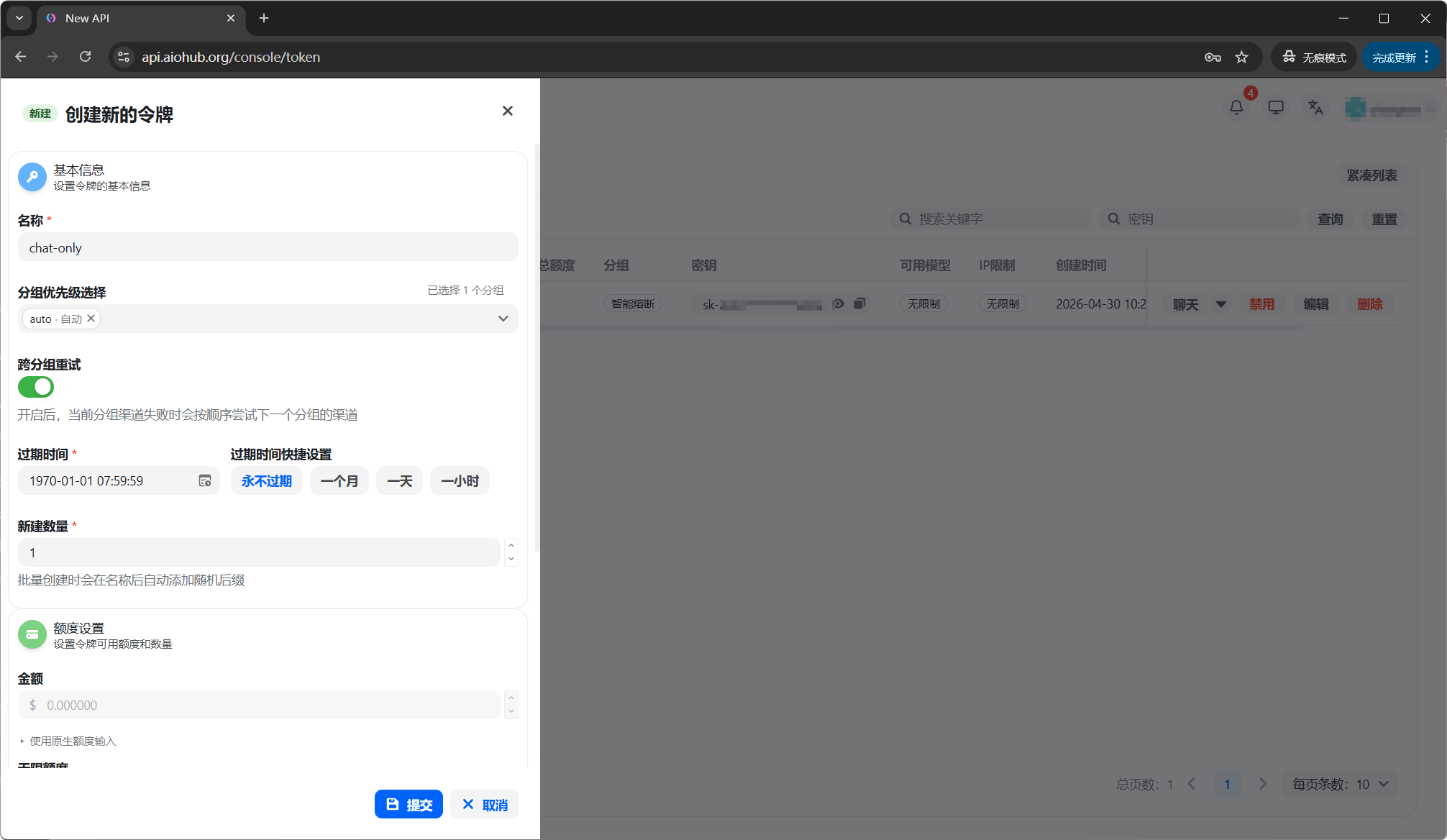
Go to the console **Token** page and select **New token**:
* **Name**: use any label that helps you identify the key.
* **Group**: use `auto` for quick validation. For long-term use, choose specific groups based on [Groups](/en/account/groups). Recommended examples are `claude-kiro` for Claude models and `codex` for OpenAI-compatible models.
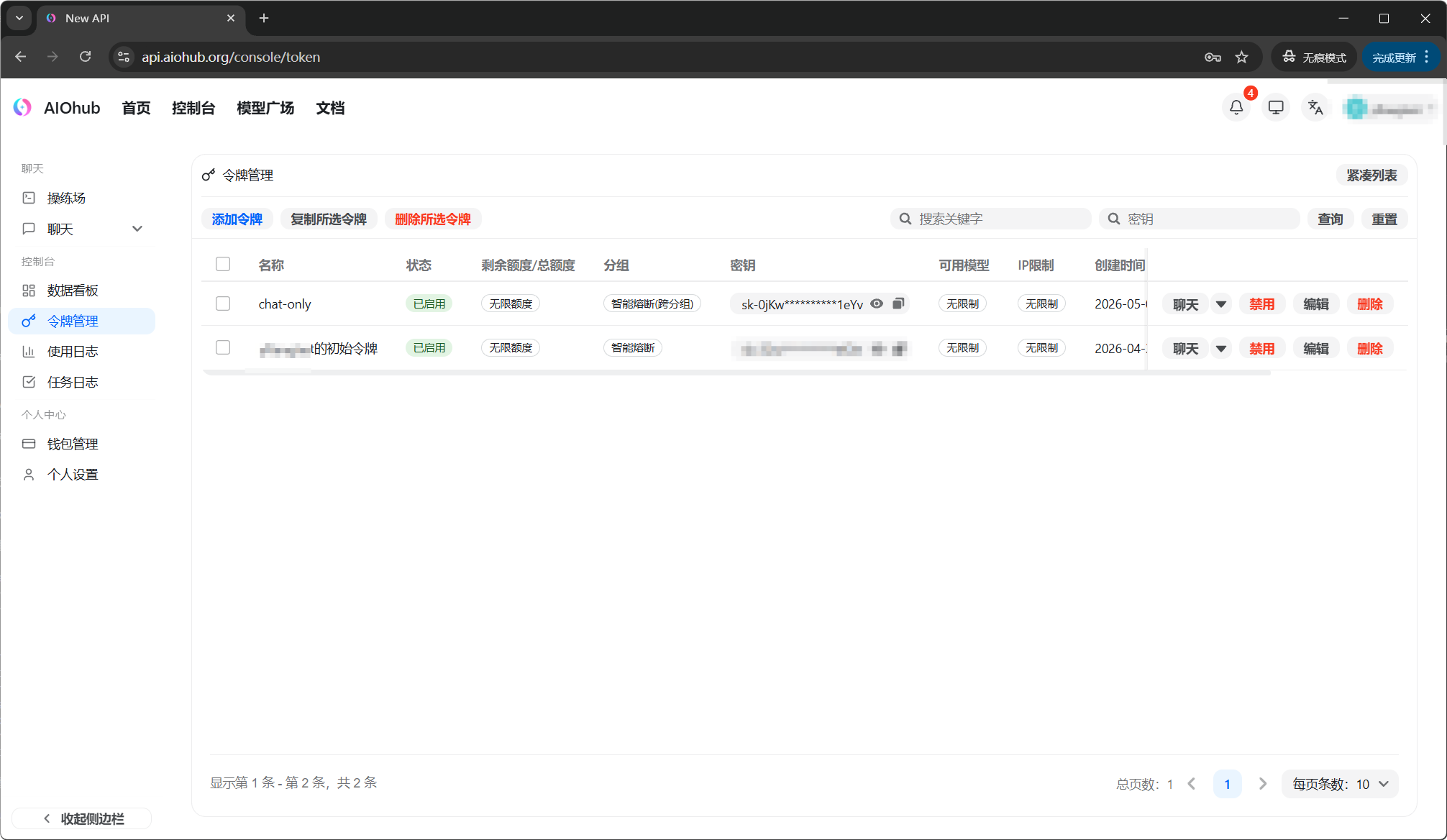
 After the key is created, copy the generated `sk-` value.
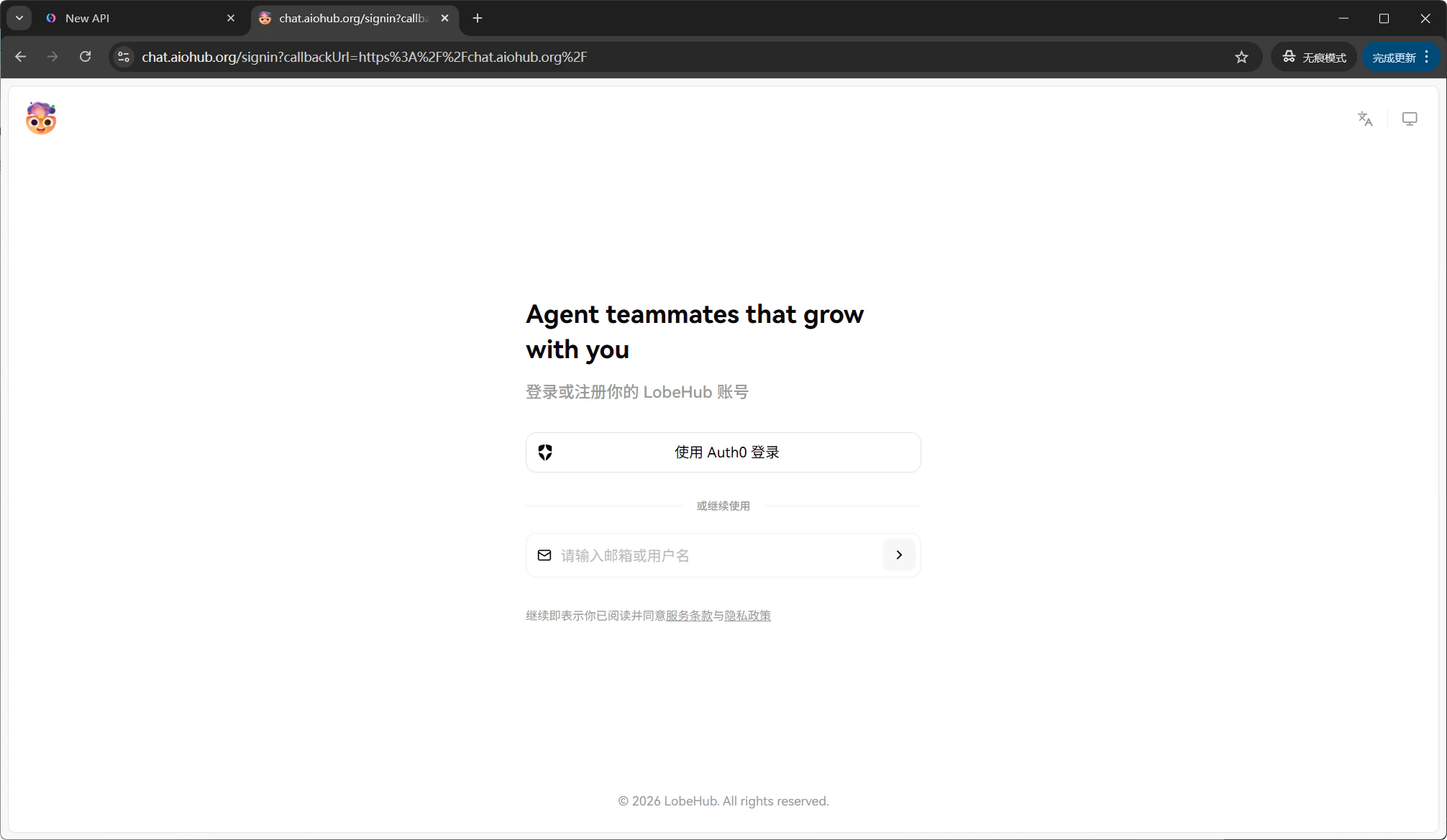
 Go to [https://chat.aiohub.org](https://chat.aiohub.org). Your LobeHub account is separate from your AIOHub account, so you need to register once.
Click **Continue with Auth0** on the page:
Go to [https://chat.aiohub.org](https://chat.aiohub.org). Your LobeHub account is separate from your AIOHub account, so you need to register once.
Click **Continue with Auth0** on the page:
 On the login page, sign in if you already have an account. If not, choose the sign-up option:
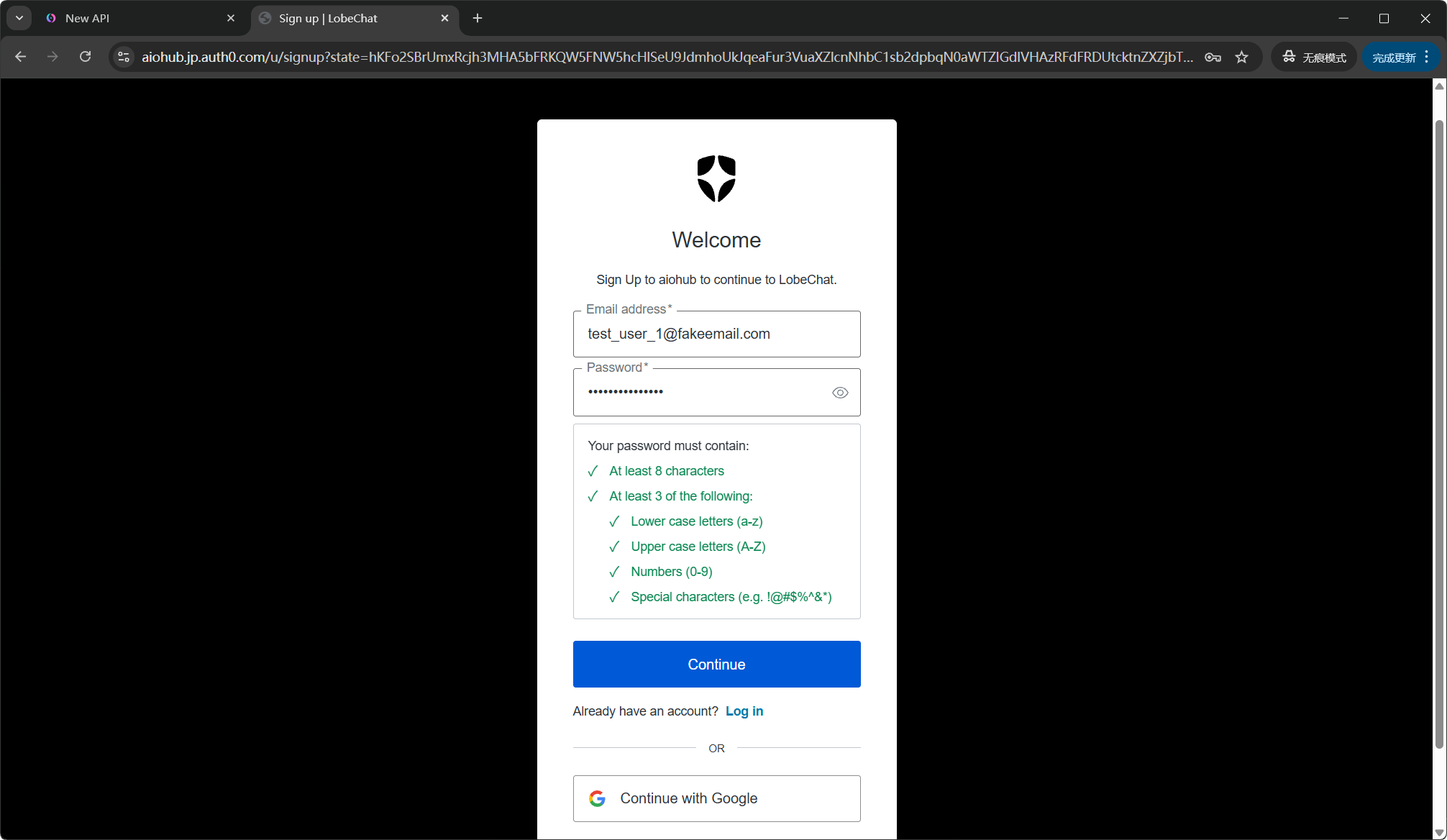
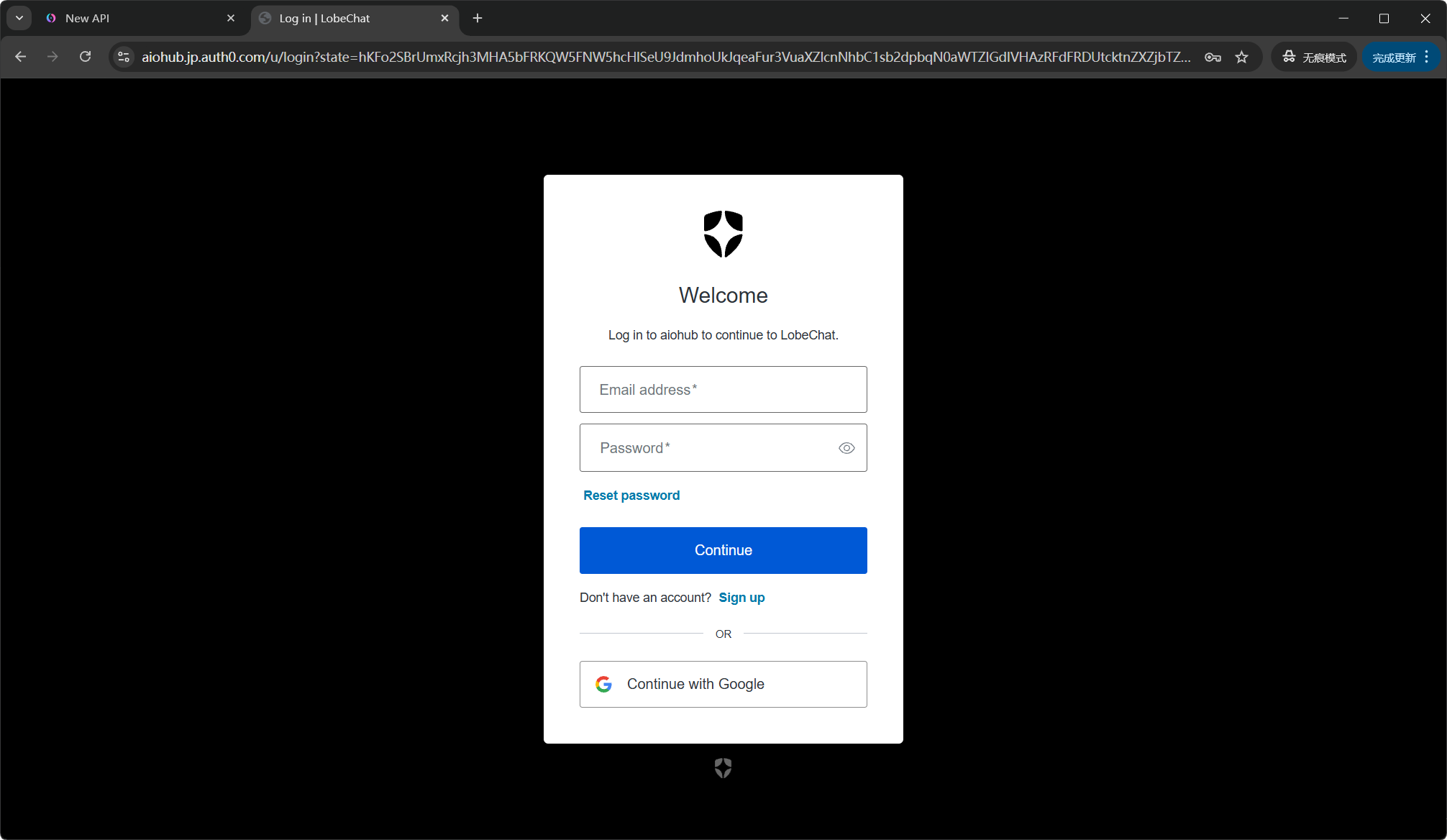 Enter your email and password to complete registration:
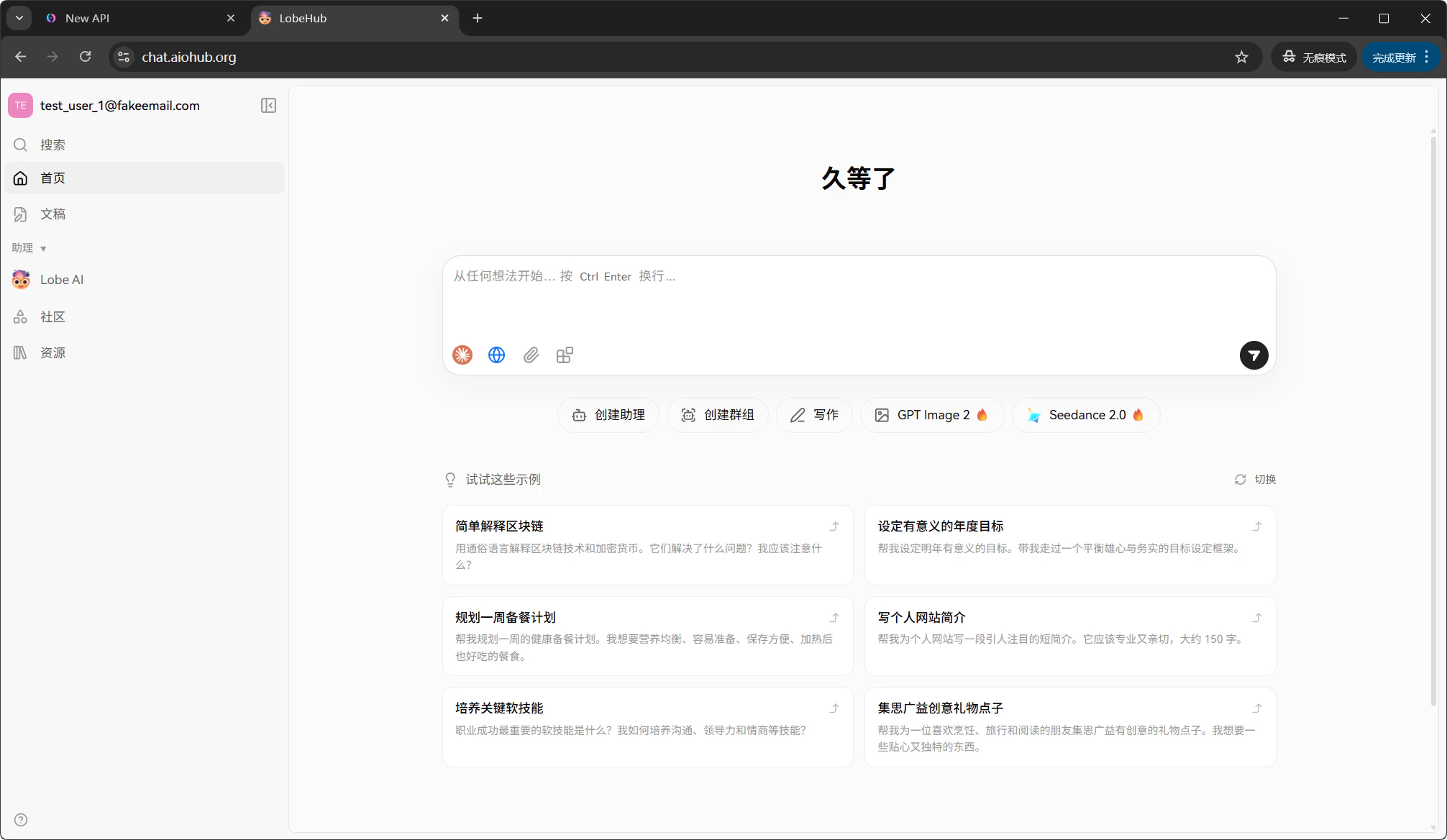
 After logging in, enter the LobeHub main screen. Click the **avatar in the top-left corner**, then choose **Settings**.
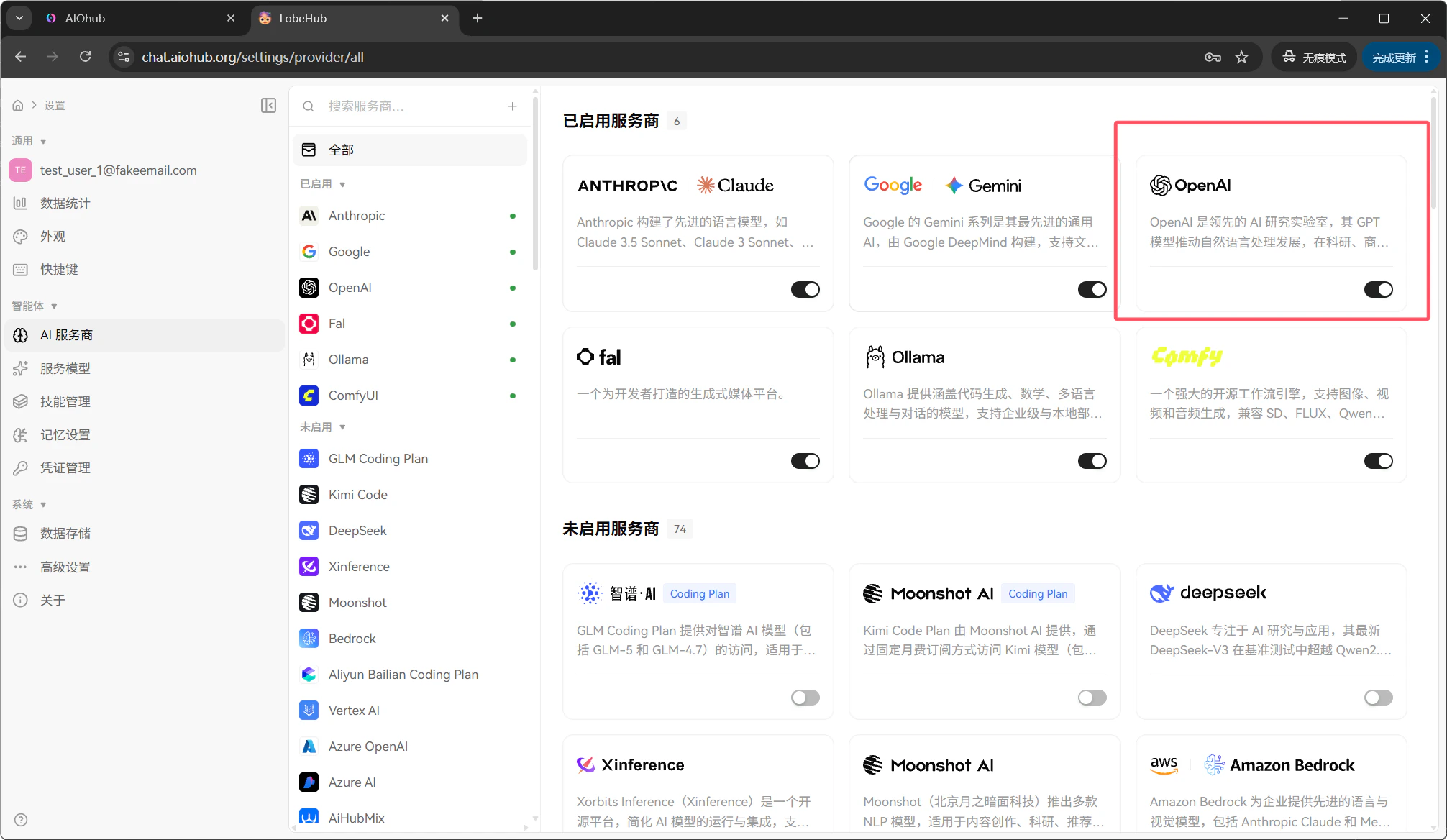
 Find **AI provider** in settings. Configure two providers when you want GPT/OpenAI-compatible models and Claude-compatible models:
| Provider | What it is | Example models |
| ------------- | --------------------------------- | ---------------------------------------------------- |
| **OpenAI** | Provider for GPT-family models | `gpt-4o`, `gpt-5.4`, `o4-mini`, `gpt-5.5` |
| **Anthropic** | Provider for Claude-family models | `claude-sonnet-4`, `claude-opus-4`, `claude-haiku-4` |
Start with **OpenAI**:
Find **AI provider** in settings. Configure two providers when you want GPT/OpenAI-compatible models and Claude-compatible models:
| Provider | What it is | Example models |
| ------------- | --------------------------------- | ---------------------------------------------------- |
| **OpenAI** | Provider for GPT-family models | `gpt-4o`, `gpt-5.4`, `o4-mini`, `gpt-5.5` |
| **Anthropic** | Provider for Claude-family models | `claude-sonnet-4`, `claude-opus-4`, `claude-haiku-4` |
Start with **OpenAI**:
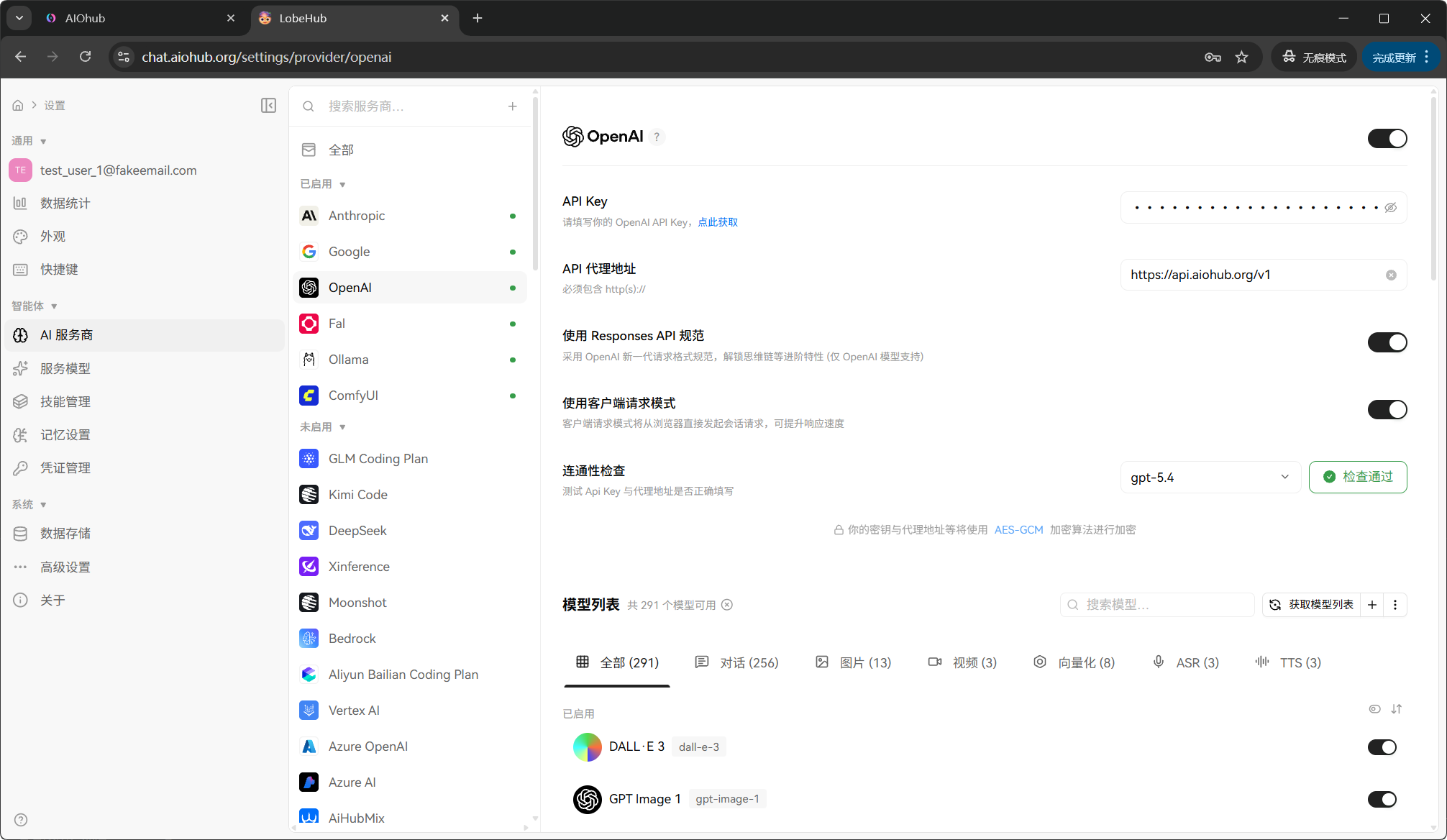
 Fill in the fields below, choose the model you want to use, such as `gpt-5.4`, and click **Check** to verify the connection:
| Setting | Value |
| ------------- | --------------------------- |
| API Key | `sk-your-api-key` |
| API Proxy URL | `https://api.aiohub.org/v1` |
Fill in the fields below, choose the model you want to use, such as `gpt-5.4`, and click **Check** to verify the connection:
| Setting | Value |
| ------------- | --------------------------- |
| API Key | `sk-your-api-key` |
| API Proxy URL | `https://api.aiohub.org/v1` |
 Next, go back to the AI provider list, find **Anthropic**, and configure it the same way. The Anthropic API Proxy URL does **not** include `/v1`:
| Setting | Value |
| ------------- | ------------------------------------------ |
| API Key | `sk-your-api-key` (the same key as OpenAI) |
| API Proxy URL | `https://api.aiohub.org` |
Next, go back to the AI provider list, find **Anthropic**, and configure it the same way. The Anthropic API Proxy URL does **not** include `/v1`:
| Setting | Value |
| ------------- | ------------------------------------------ |
| API Key | `sk-your-api-key` (the same key as OpenAI) |
| API Proxy URL | `https://api.aiohub.org` |
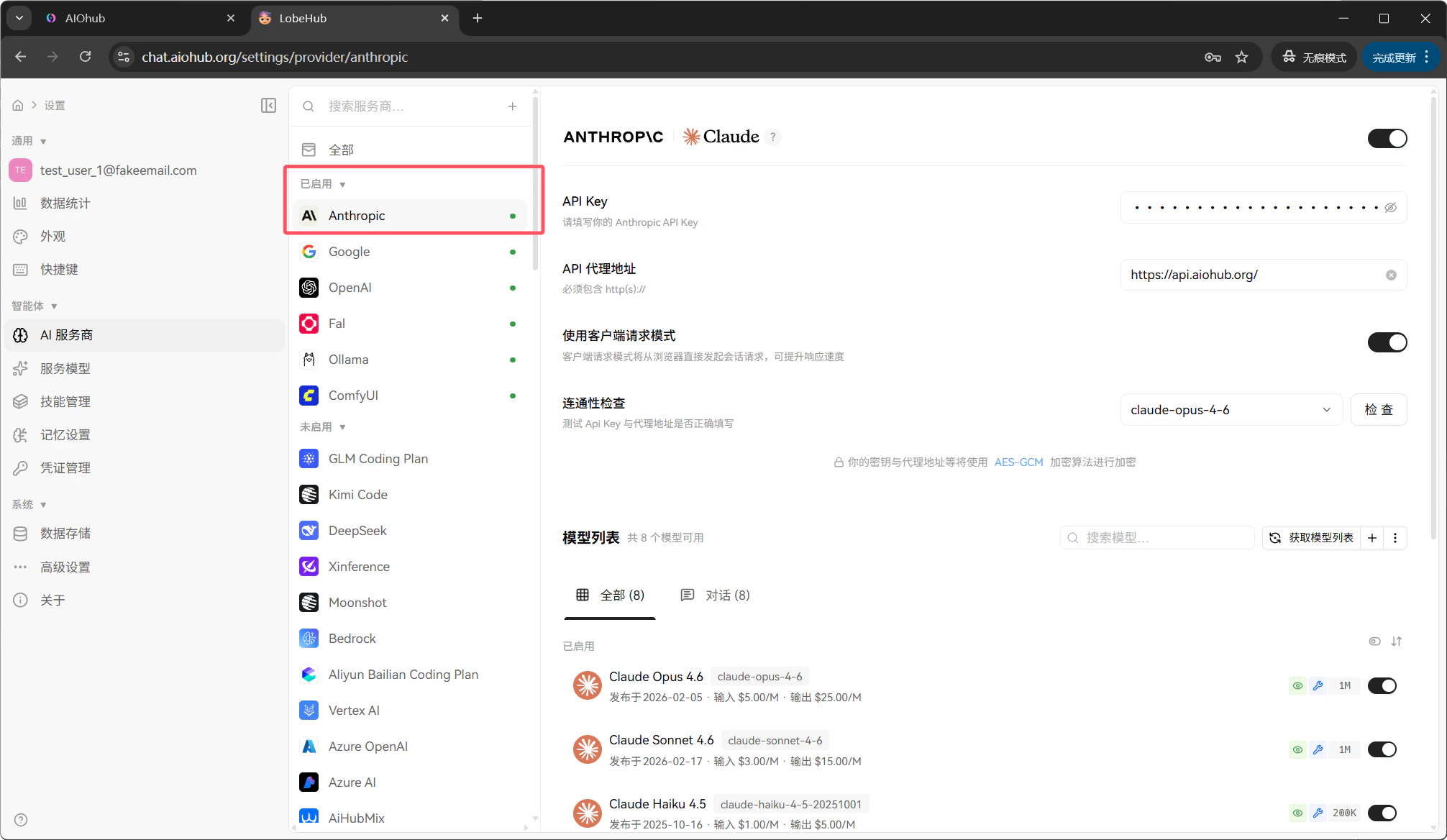 OpenAI and Anthropic use different proxy URLs. OpenAI uses `https://api.aiohub.org/v1`; Anthropic uses `https://api.aiohub.org` without `/v1`. Mixing these URLs causes connection failures.
Available models depend on the groups assigned to your API key. If a model is missing, go back to the AIOHub console and check whether the key group includes that model.
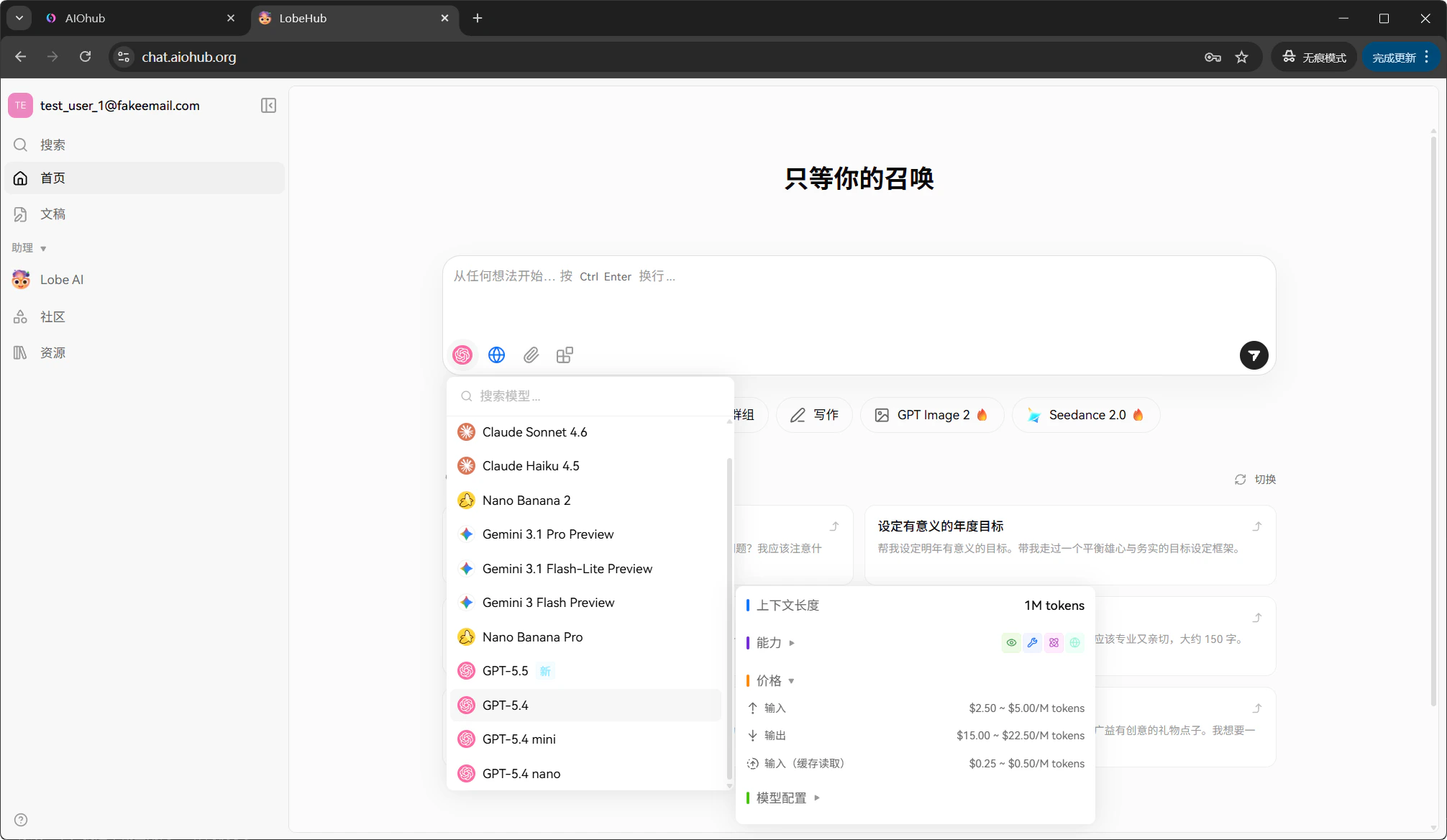
Go back to the main screen, click **New Conversation**, and choose the configured model from the model dropdown. This example uses `gpt-5.4`:
OpenAI and Anthropic use different proxy URLs. OpenAI uses `https://api.aiohub.org/v1`; Anthropic uses `https://api.aiohub.org` without `/v1`. Mixing these URLs causes connection failures.
Available models depend on the groups assigned to your API key. If a model is missing, go back to the AIOHub console and check whether the key group includes that model.
Go back to the main screen, click **New Conversation**, and choose the configured model from the model dropdown. This example uses `gpt-5.4`:
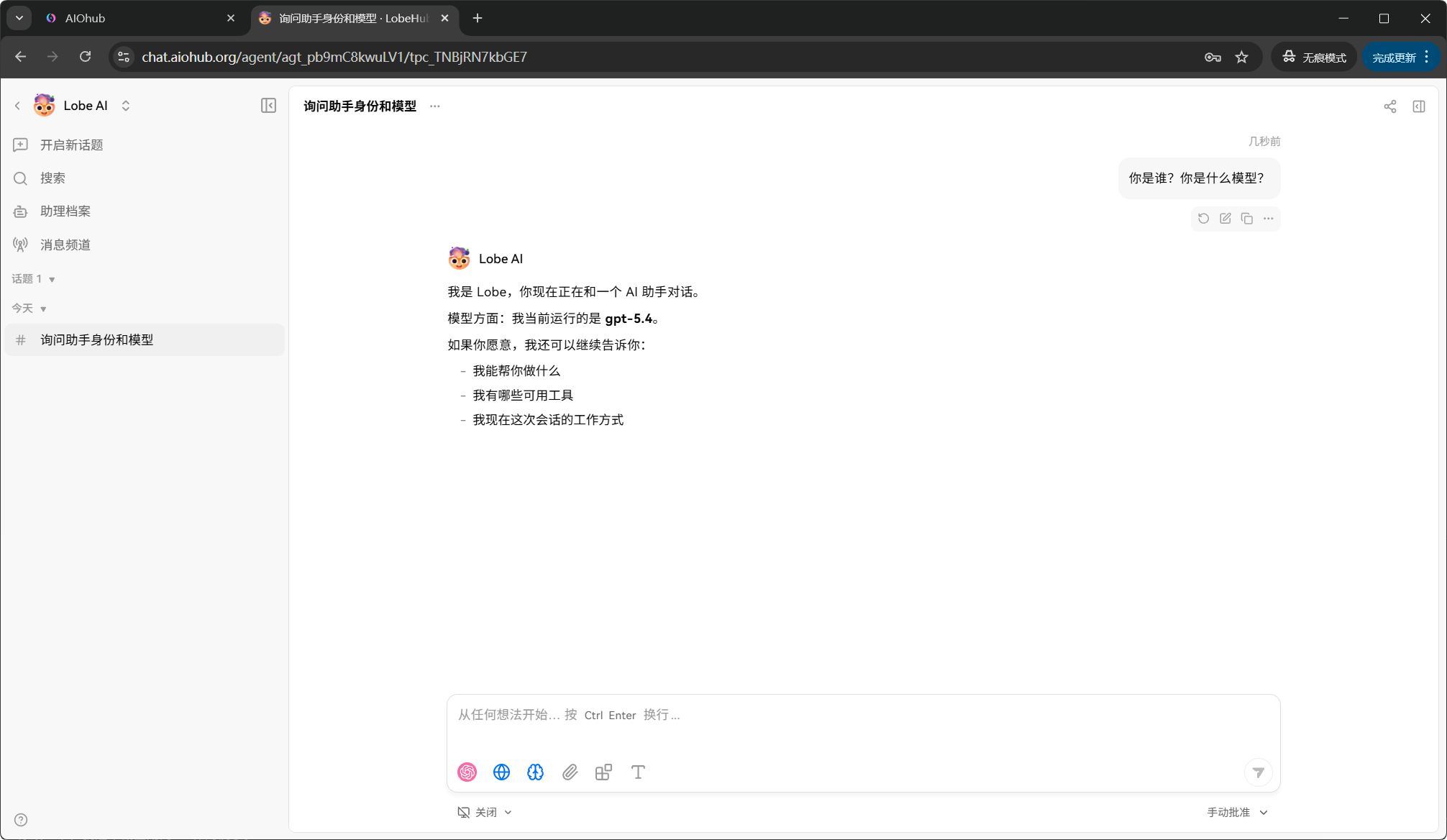
 Type a message to start the conversation:
 ## View usage
After sending a message, open the AIOHub console **Logs** page to view the calls created by that conversation:
## View usage
After sending a message, open the AIOHub console **Logs** page to view the calls created by that conversation:
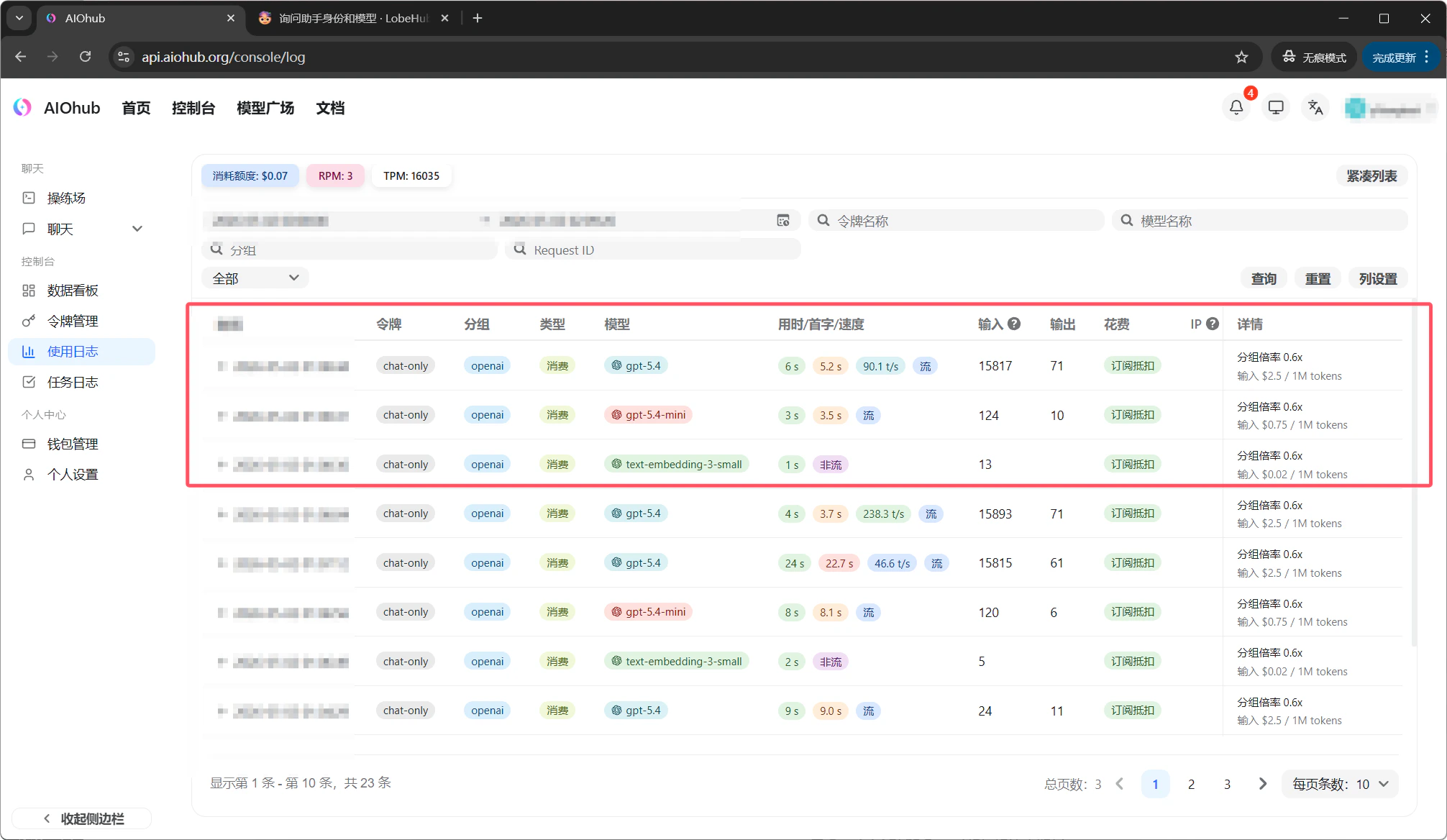 One user message can produce several usage log entries, such as `text-embedding-3-small`, `gpt-5.4-mini`, and `gpt-5.4`. This is normal. LobeHub can call auxiliary models in the background:
* **text-embedding-3-small**: converts messages into vectors for knowledge base retrieval and context matching.
* **gpt-5.4-mini**: generates conversation titles and handles other helper tasks.
* **gpt-5.4**: the main chat model you selected, which answers your message.
These auxiliary calls are usually low cost, but you can reduce unnecessary usage by changing helper model settings in LobeHub. See [Understand auxiliary models](#understand-auxiliary-models).
## Use lower-cost groups
The guide above uses `auto` for quick setup. If you want lower cost, create an API key with more economical groups and replace the key in LobeHub.
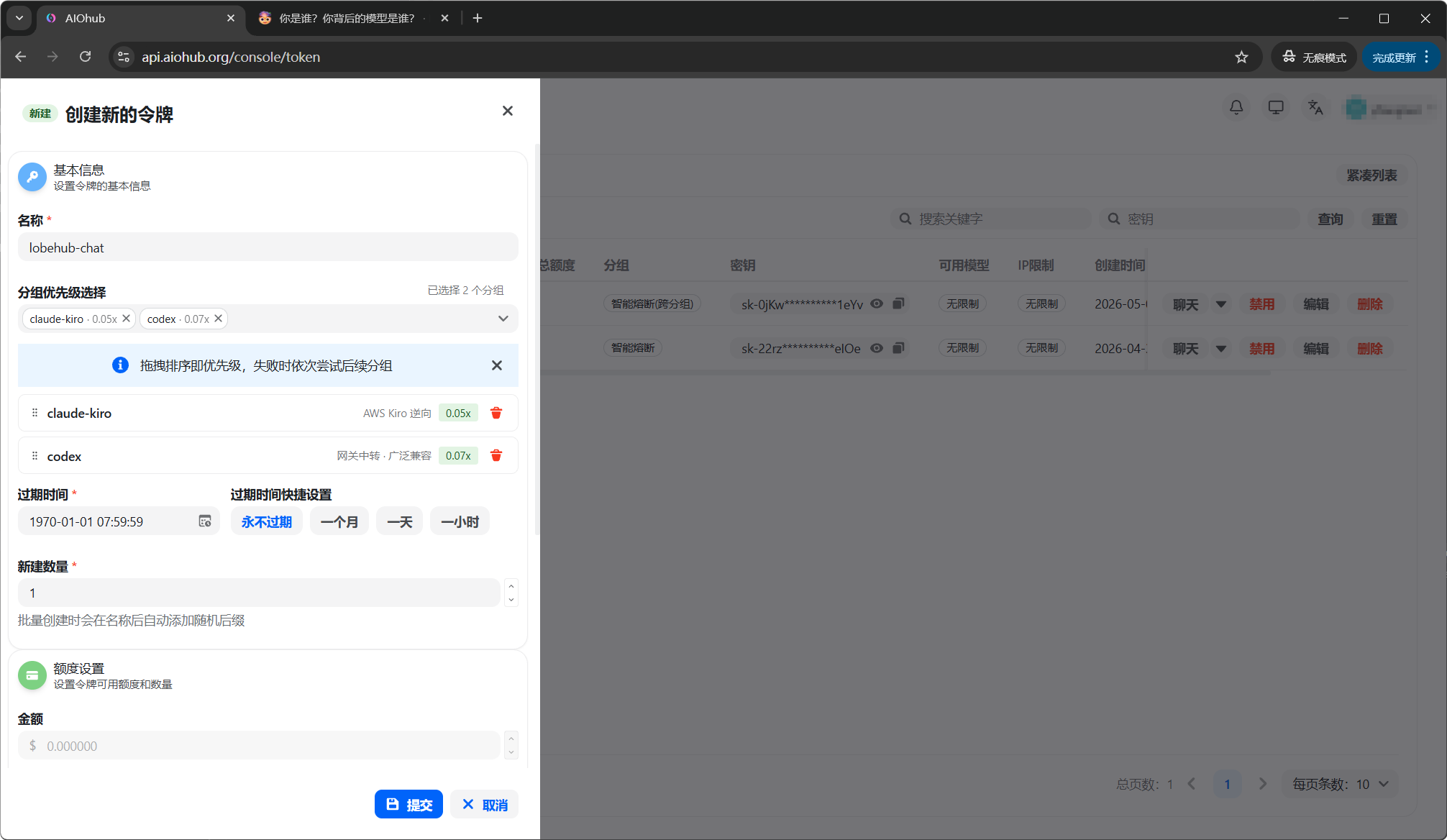
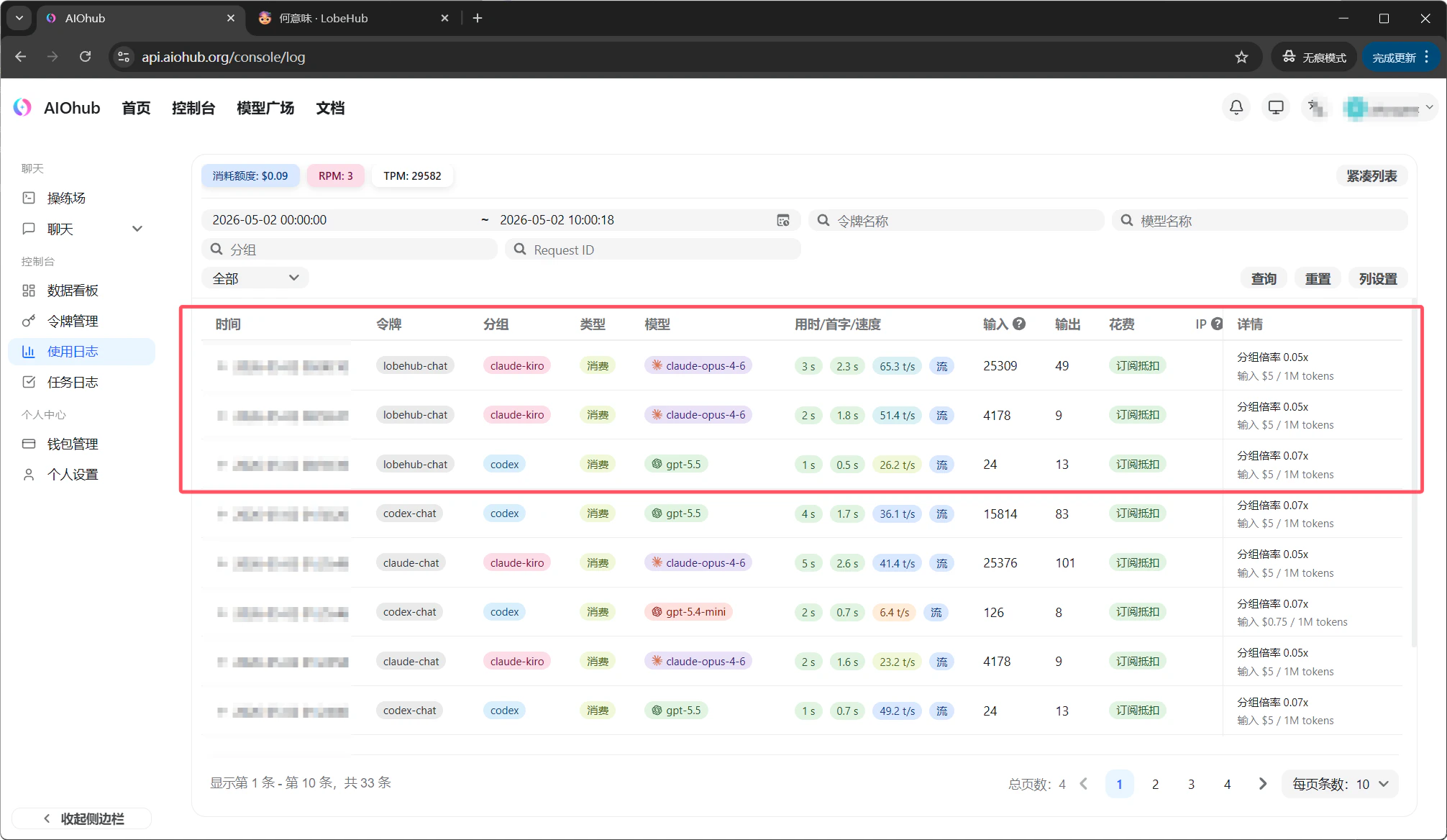
Go back to the AIOHub console **Token** page. Create a new key and select both `codex` for OpenAI-compatible routes and `claude-kiro` for Claude routes. Check [Groups](/en/account/groups) for current group ratios.
One user message can produce several usage log entries, such as `text-embedding-3-small`, `gpt-5.4-mini`, and `gpt-5.4`. This is normal. LobeHub can call auxiliary models in the background:
* **text-embedding-3-small**: converts messages into vectors for knowledge base retrieval and context matching.
* **gpt-5.4-mini**: generates conversation titles and handles other helper tasks.
* **gpt-5.4**: the main chat model you selected, which answers your message.
These auxiliary calls are usually low cost, but you can reduce unnecessary usage by changing helper model settings in LobeHub. See [Understand auxiliary models](#understand-auxiliary-models).
## Use lower-cost groups
The guide above uses `auto` for quick setup. If you want lower cost, create an API key with more economical groups and replace the key in LobeHub.
Go back to the AIOHub console **Token** page. Create a new key and select both `codex` for OpenAI-compatible routes and `claude-kiro` for Claude routes. Check [Groups](/en/account/groups) for current group ratios.
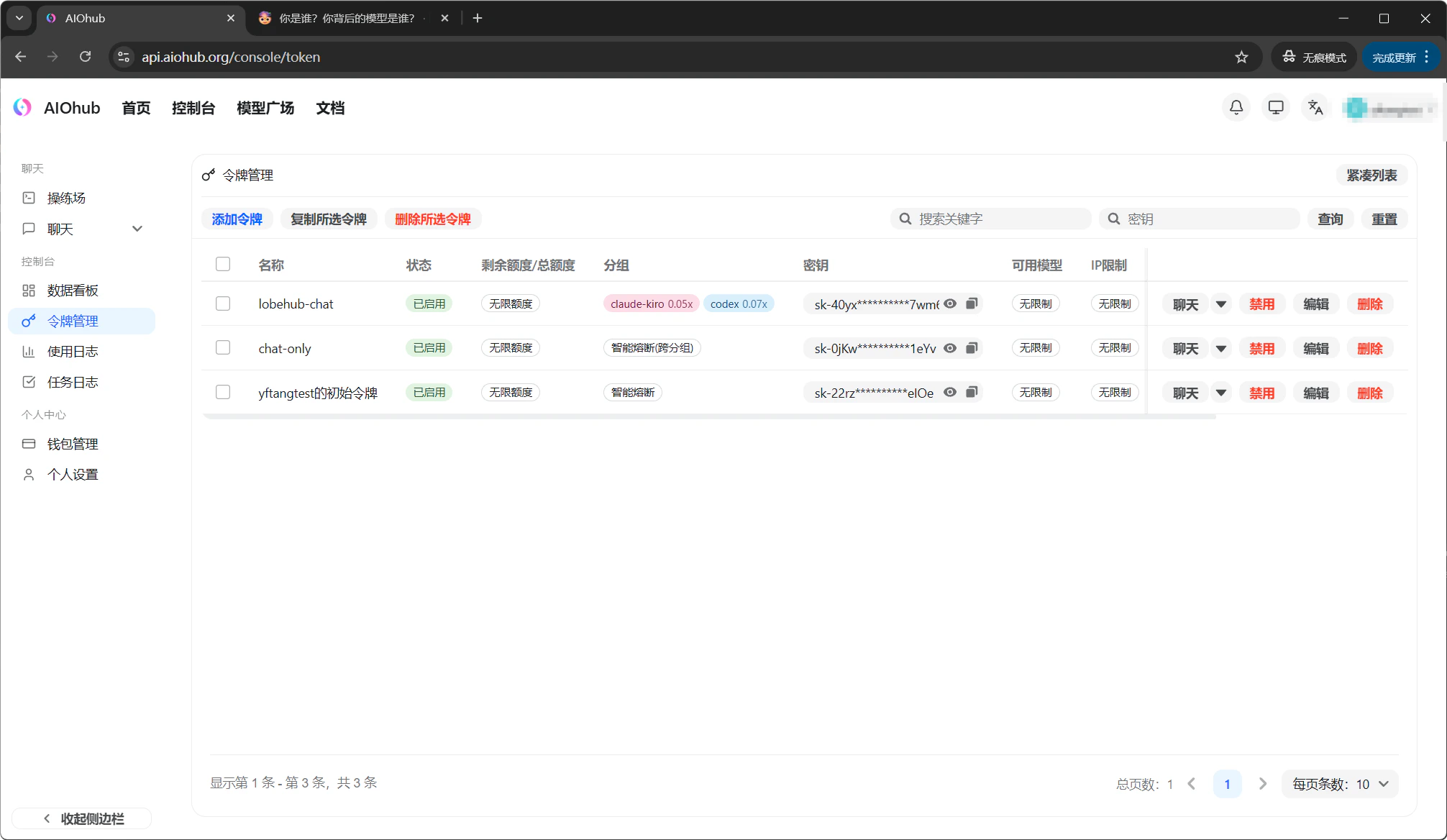
 After creation, the token list shows that this key includes both groups:
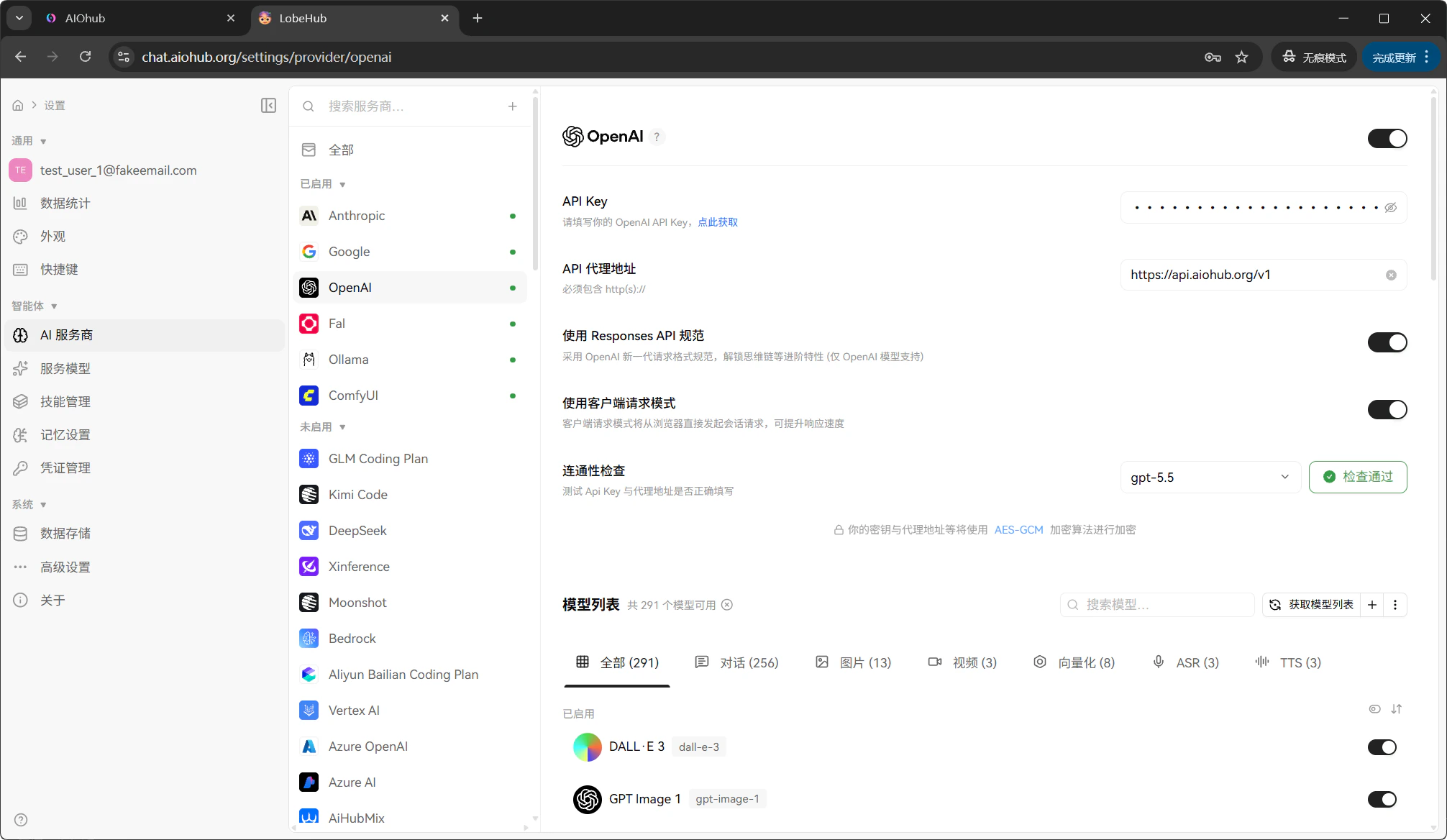
 Go back to **Settings** -> **AI provider** in LobeHub. Replace the OpenAI API Key with the new economical key, then verify it:
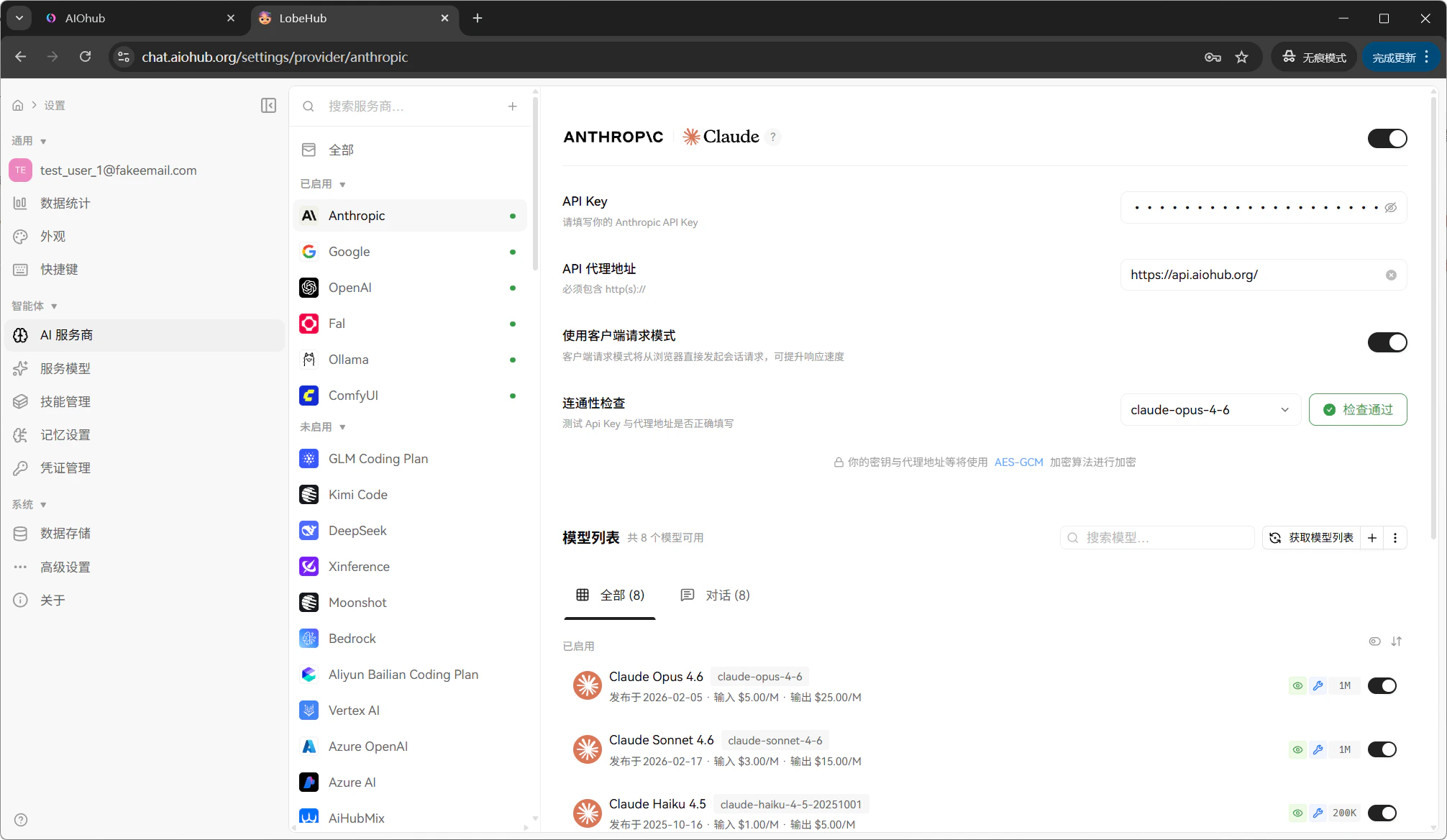
 Replace the Anthropic API Key with the same new key:
 Choose a model and start a conversation:
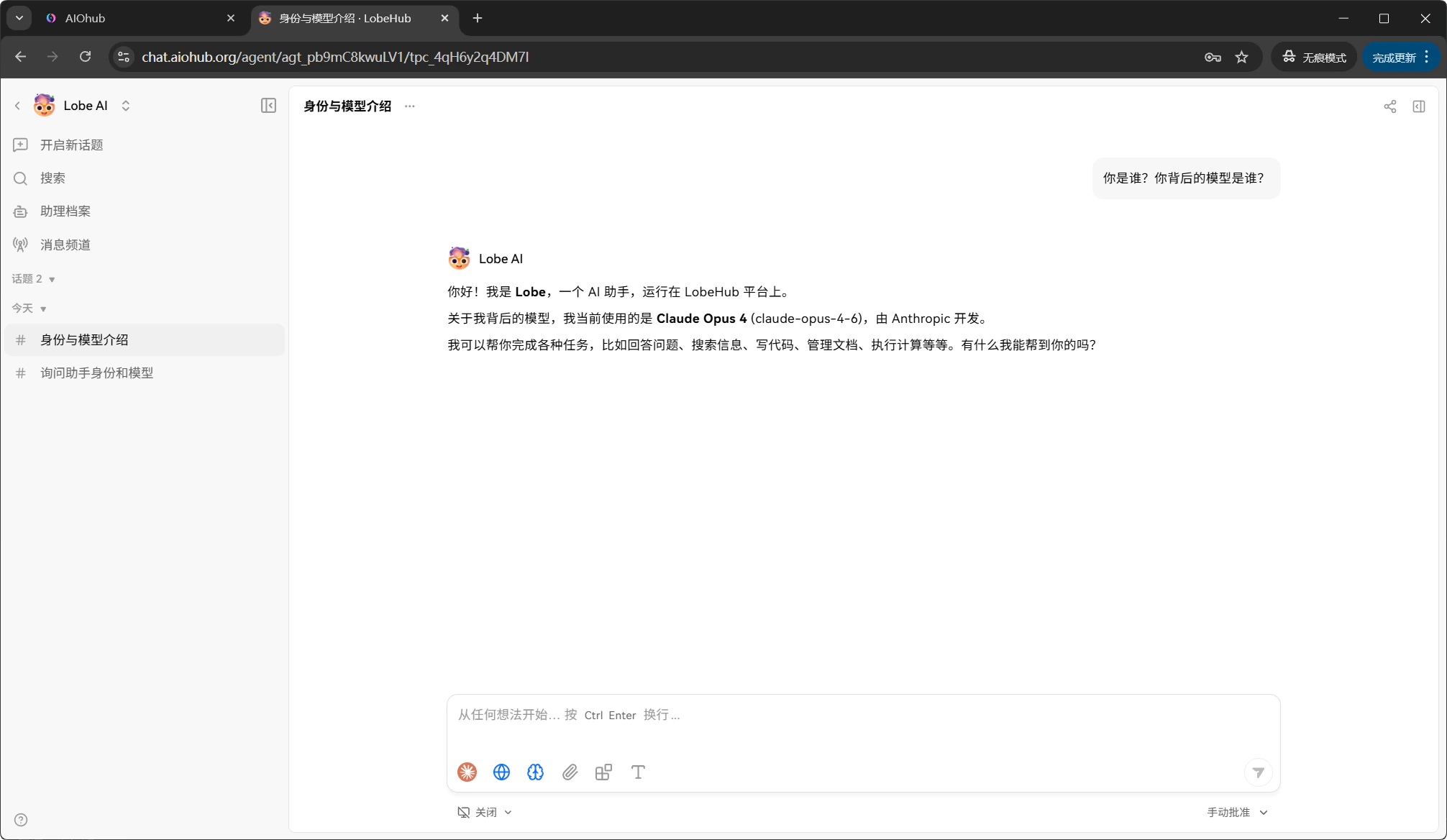 Return to the AIOHub console logs. You can confirm that calls now use the lower-cost group:
 ## Understand auxiliary models
You may notice that one message creates multiple usage log entries. This happens because LobeHub can call helper models in addition to the main chat model:
| Helper feature | Default model | Purpose |
| ------------------------ | ------------------------ | ----------------------------------------------------------------------------------------------- |
| Topic naming | `gpt-5.4-mini` | Generates a title for new conversations so they are easier to identify in the conversation list |
| Translation helper | `gpt-5.4-mini` | Translates UI content or messages when needed |
| Knowledge base embedding | `text-embedding-3-small` | Converts messages into vectors for knowledge base retrieval and semantic matching |
These auxiliary calls consume AIOHub balance, though each call is usually small because helper models are normally much cheaper than the main model.
See the [LobeHub documentation](https://lobehub.com/docs) for detailed feature settings.
Go to the web chat interface.
## FAQ
Make sure the API Proxy URL is `https://api.aiohub.org/v1` for OpenAI, and that the API Key starts with `sk-` and is valid.
Manually type the model name in the model list to add it. If it still does not work, check that the group assigned to your API key includes the model in the console. For example, GPT models need the `openai` or `auto` group.
For normal chat, use `auto` for smart routing or `openai` for GPT and OpenAI-compatible models. See [Groups](/en/account/groups).
Check that your console balance is sufficient and the API key has not expired. You can also check the **Logs** page in the console for specific error details.
## Understand auxiliary models
You may notice that one message creates multiple usage log entries. This happens because LobeHub can call helper models in addition to the main chat model:
| Helper feature | Default model | Purpose |
| ------------------------ | ------------------------ | ----------------------------------------------------------------------------------------------- |
| Topic naming | `gpt-5.4-mini` | Generates a title for new conversations so they are easier to identify in the conversation list |
| Translation helper | `gpt-5.4-mini` | Translates UI content or messages when needed |
| Knowledge base embedding | `text-embedding-3-small` | Converts messages into vectors for knowledge base retrieval and semantic matching |
These auxiliary calls consume AIOHub balance, though each call is usually small because helper models are normally much cheaper than the main model.
See the [LobeHub documentation](https://lobehub.com/docs) for detailed feature settings.
Go to the web chat interface.
## FAQ
Make sure the API Proxy URL is `https://api.aiohub.org/v1` for OpenAI, and that the API Key starts with `sk-` and is valid.
Manually type the model name in the model list to add it. If it still does not work, check that the group assigned to your API key includes the model in the console. For example, GPT models need the `openai` or `auto` group.
For normal chat, use `auto` for smart routing or `openai` for GPT and OpenAI-compatible models. See [Groups](/en/account/groups).
Check that your console balance is sufficient and the API key has not expired. You can also check the **Logs** page in the console for specific error details.